

How to add users in my tenant?
Adding a user to your tenant is straightforward once you know where to look. From the Users page, you can create an account through a clear flow without bouncing between different screens.
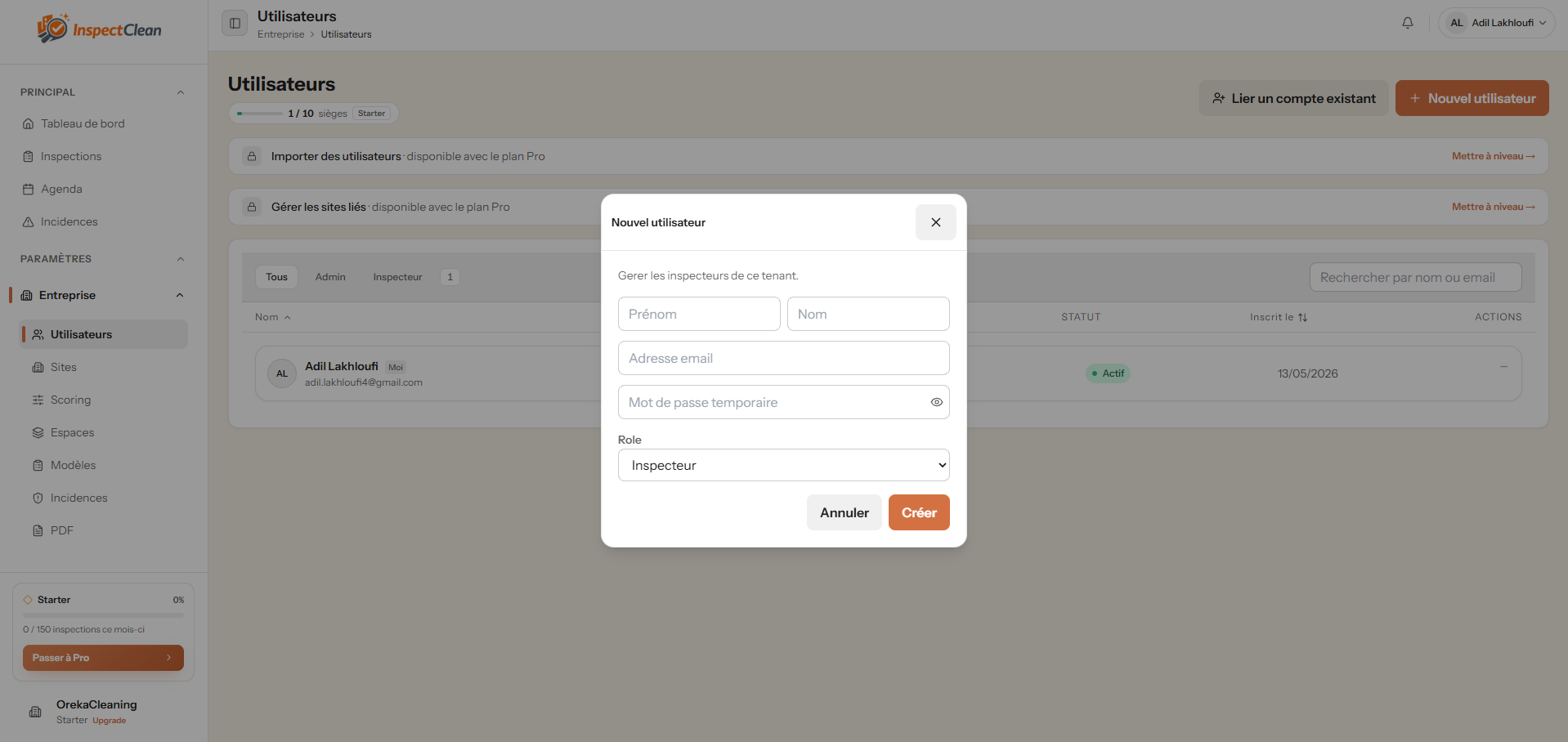
This flow is for ADMIN users who manage the tenant on a day-to-day basis.
The goal is not just to create an account, but to do it cleanly with the right information and the right access level from the start.
Where to find the Users page
You will find the page under Company, then Users, in the main menu. If you already know the address, you can also go directly to `/company/users` and skip a couple of clicks.
The page is only visible to roles that manage tenant members, which keeps the workflow focused on the right people.
If the seat quota has already been reached, you need to free a slot or adjust the plan before adding someone new, otherwise the creation will stop there.
How to add a new user
From the user list, click New user to open the creation form.
Enter the details, pick the correct role and save the account when everything looks right. Taking a moment to double-check here saves time later.
After saving, the new user should appear in the table. If it does not, it usually means one of the required fields or a tenant limit still needs attention.
Required information
The form stays intentionally small: first name, last name, email, password and role.
First name and last name identify the person clearly in the tenant and keep the list readable when several users are shown together.
The email becomes the login address, the password must be at least eight characters long, and the role should match the access level you actually need.
On this page, the creation flow is reserved for ADMIN users, so the choice should stay aligned with that scope.
How to validate and save
Before clicking Create, take a second to review the mandatory fields and check that the selected role matches the need.
Once the account is saved, return to the list and confirm that the new user is present. That final check is the easiest way to be sure everything went through correctly.
If the account already exists elsewhere, linking the existing user is usually the cleaner path and avoids creating duplicates.
Things to watch out for
The most common mistakes are simple ones: the seat quota is already full, the role is not the right one, or the password is too weak.
When that happens, pause and correct the issue before saving. It is usually faster to stop for a second than to clean things up afterward.
A quick check on the list after creation saves a lot of back-and-forth later and gives you immediate confirmation that the user was added properly.
FAQ
Frequently asked questions
Who can add a user?
ADMIN users with access to the Users page can create a new account in the tenant.
Which fields are required?
First name, last name, email, password and role: all five fields must be completed for the creation to be valid.
What if the quota is full?
Free a slot, deactivate an unused account, or check the plan you subscribed to before trying again.